


Deals of the week Thursday

Hi Guys!
What have we here? Some deals? SWEET DEALS BRO
* Get a GoPro HERO3+ Silver for just $253.99 down from $299 from AT&T.

* Into Selfies? Get a Selfie-Stick With Remote Shutter Control for only $5.99 with Free Shipping from 13deals.

*Check out a Universal Anti-Slip Smartphone GEL Pad With Grip technology for just $2.99 with free shipping from iTech Deals.

* Get your hands on these: 3in1 Fisheye+ Wide Angle + Macro Camera Clip Lens for your iPhone for just $2.90 with free shipping from eBay.

*Also on eBay, we’ve got a good deal on a Apple MacBook Air 13.3″ Core i5 4GB with 128GB Flash Storage for $829.99 with free shipping.

*Need a new TV? Check this out: Dell Home has 55″ Vizio (M552I-B2) 1080p 120Hz Smart LED HDTV on sale for $697.99 – $98 off with Use coupon code W1SW2234RRCH0J to get a further $98 dollars off for a total of $599.99. Shipping is free.
*Need some entertainment? Family Video has Select Used Blu-rays on sale for $5. Shipping is free with coupon code GRATIS4U.
*OR step into the Google Chromecast world with the Wireless HDMI Streaming Dongle for only $25 (store pickup only – click ‘pick up today’) from Staples.

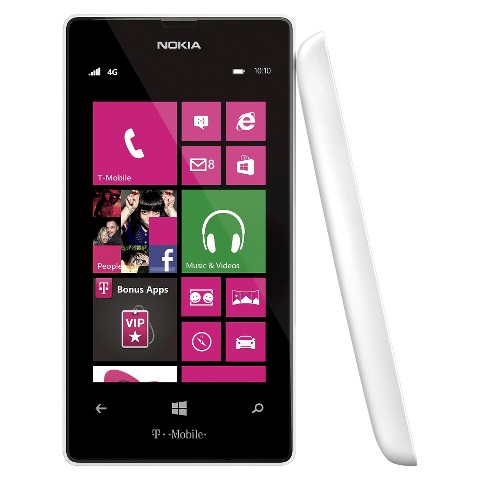
* At Target – buy a Brightspot mobile refill card ($30/$35/$45/$55) in store and you automatically qualify for a Nokia Lumia 521 smartphone for only 99 cents more. Wot. The phone usually retails for $43.99! The offer is added when the refill card is scanned. (This phone will work with T-Mobile SIM also.)
Happy Hunting!
Tags: Cheap, Coupon, Deals of The Week Thursday, Discount, Gadgets
 Apple, Cool Features | iPhone-Antidote |
  April 30, 2015 2:14 pm |
  Comments (0)


 Subscribe


